
Looking for a Shorter Overview?
AI Summary
Key Moments
Mandatory Phishing-Resistant MFA for Admins
From July 20, 2026, all admins and privileged users must use phishing-resistant MFA methods like hardware keys or built-in authenticators.SSO Must Pass Correct Authentication Signals
Salesforce requires identity providers to send phishing-resistant signals; otherwise, admins must enroll in Salesforce-native MFA.Integration Accounts Subject to MFA if UI Login Occurs
Integration users with admin permissions that log in via the UI are in scope and must comply with phishing-resistant MFA.European Passkey Management Ensures Compliance
Using European-based credential managers like Uniqkey helps meet GDPR and regulatory requirements for managing passkey authentication data.Salesforce is making two major security changes this summer. Starting July 20, 2026 (moved from the original July 1 date), every privileged user, anyone with the System Administrator profile or elevated permissions, must authenticate with phishing-resistant MFA in production. Starting the same day, July 20, 2026, all remaining employee users must use at least standard MFA. Sandbox enforcement for both waves already began on July 6, 2026. Users who are not enrolled will be blocked from logging in.
This is the most significant identity security change Salesforce has made since it first required MFA in 2022. It affects direct logins and SSO logins alike, in production and sandbox environments.
This guide covers everything IT managers, Salesforce admins, and security teams need to prepare: what is changing, who needs to act, how to set it up, how to handle SSO, what to do with integration accounts, and why the tool you choose for managing passkeys has compliance implications that go beyond Salesforce.
Key Takeaways
- Salesforce is enforcing phishing-resistant MFA for all admin and privileged users. Sandbox enforcement started July 6, 2026 (moved from June 22), and production enforcement now starts July 20, 2026 (moved from July 1). Standard MFA enforcement for all other users also has sandbox enforcement from July 6, 2026, with production unchanged at July 20.
- Standard MFA methods are no longer sufficient for admins. Push notifications (including Salesforce Authenticator), TOTP apps, and SMS codes are blocked at login for privileged accounts.
- Only built-in authenticators (Touch ID, Windows Hello, Face ID), hardware security keys, and FIDO2-compatible passkeys in credential managers meet the phishing-resistant requirement.
- SSO does not automatically make you compliant. Salesforce inspects the authentication signal your identity provider sends. If the signal does not confirm phishing-resistant authentication, the login is blocked.
- Integration users with admin profiles are in scope if they have ever logged into the Salesforce UI.
- Passkeys stored in a European password manager like Uniqkey, align with GDPR, NIS2, and data sovereignty expectations. Passkeys managed through a non-EU platform may be subject to the CLOUD Act regardless of server location.
Why This Is Happening Now
Standard MFA was a meaningful improvement when Salesforce introduced it. It added a second layer of verification on top of a password, making stolen credentials alone insufficient for access. But the attack landscape has moved past it.
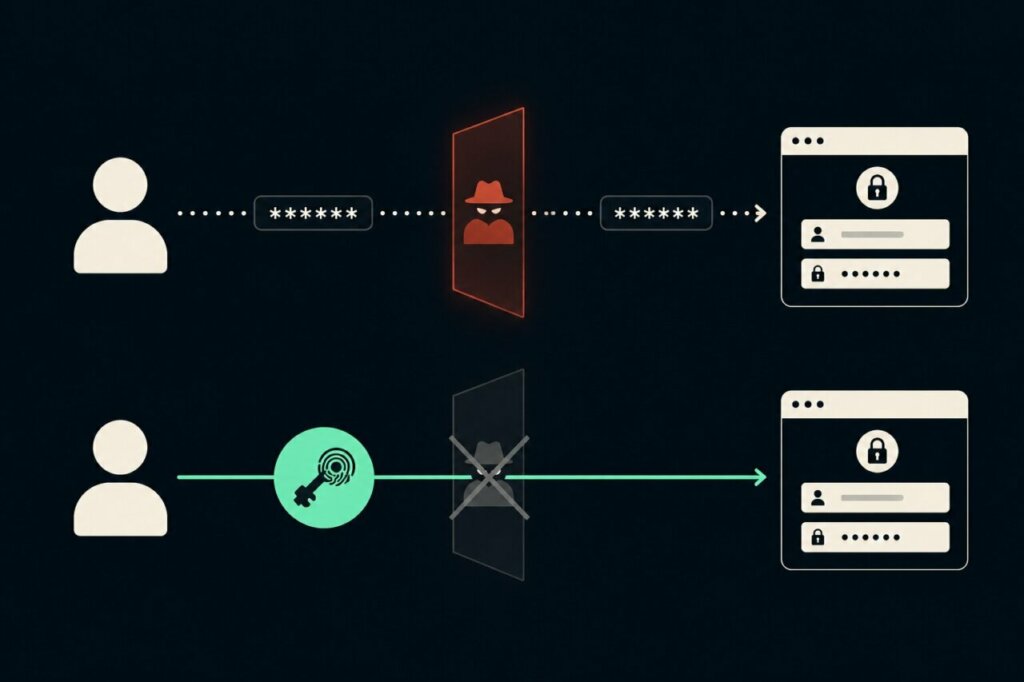
Adversary-in-the-middle (AiTM) phishing kits are now commercially available for as little as $200. They work by sitting between the user and the real login page, relaying credentials and TOTP codes in real time. The user thinks they are logging in normally. The attacker captures a fully authenticated session token. A single phishing-as-a-service platform, Tycoon 2FA, accounted for the majority of the phishing volume Microsoft blocked by mid-2025.
MFA fatigue attacks take a different approach. Attackers send repeated push notification requests to a user’s phone, often late at night or during travel, until the user approves one out of frustration. The 2025 Verizon Data Breach Investigations Report found that MFA fatigue appeared in 14% of security incidents analysed.
Salesforce has documented active campaigns using both techniques specifically targeting Salesforce orgs. Standard MFA, including Salesforce Authenticator, Google Authenticator, and SMS codes, is vulnerable to both attack patterns.
Phishing-resistant MFA closes this gap at the protocol level. It uses public key cryptography and domain binding: the authenticator checks that the login page is the legitimate Salesforce domain before responding. A fake page, no matter how convincing it looks, receives nothing. The private key never leaves the user’s device and cannot be intercepted, relayed, or replayed.
This is not a policy preference. It is a fundamental change in how privileged access to Salesforce is authenticated.
The Two Enforcement Waves
Salesforce is rolling this out in two waves, each affecting different user populations:
Wave 1: Phishing-Resistant MFA for Privileged Users
| Environment | Start Date | Rollout |
| Sandbox | June 22, 2026 | ~7 days |
| Production | July 1, 2026 | ~30 days |
This wave requires phishing-resistant methods only for admins and users with elevated permissions. Standard MFA methods (push notifications, TOTP apps, SMS) are blocked at login.
Wave 2: Standard MFA for All Employee Users
| Environment | Start Date | Rollout |
| Sandbox | June 22, 2026 | ~7 days |
| Production | July 20, 2026 | ~30 days |
This wave enforces at least standard MFA for every internal user who does not have privileged permissions. Users who already have any MFA method registered will see no change. Users with no MFA registered will be prompted to enrol at their next login.
Both waves are staggered across Salesforce instances. Your org could be enforced on day one of the window or at the end.
Who Needs Phishing-Resistant MFA (Wave 1)
Any user who meets any one of these conditions is in scope for the phishing-resistant requirement:
- Assigned the System Administrator profile
- Has the Modify All Data permission
- Has the View All Data permission
- Has the Customize Application permission
- Has the Author Apex permission
These permissions can come from a Profile, a Permission Set, or a Permission Set Group. All three sources count.
In practice, this covers more people than most IT teams expect:
- All Salesforce administrators, obviously
- Developers with elevated sandbox or production access
- Power users granted View All Data for reporting or analytics
- Integration accounts given System Administrator for convenience
- Consultants and agency staff with temporary admin access
- Support users granted Modify All Data for troubleshooting
Who is exempt: Experience Cloud and Community site users are not affected. API-only users who never log in through the Salesforce UI are not affected. Users without any of the five permissions above fall under Wave 2 (standard MFA), not Wave 1.
Finding Affected Users
Salesforce provides several ways to identify who is in scope:
- User List Views filtered by Profile name (System Administrator) and permission assignments
- Salesforce Reports on the User object filtered by the relevant permissions
- The User Access and Permissions Assistant tool in Setup
- SOQL queries via Developer Console or Workbench, filtering the User object for each of the five permissions
Whatever method you choose, make sure you include permissions inherited from Permission Set Groups, not just direct profile assignments. These are easy to miss.
Also audit users holding the “Waive Multi-Factor Authentication for Exempt Users” permission. After enforcement, this permission will no longer automatically exempt users from MFA. They will be prompted to enrol like everyone else. If you have automated testing accounts that genuinely need this exemption, you must contact Salesforce Support before enforcement to request approval for continued exemption.
What Methods Qualify, and What Does Not
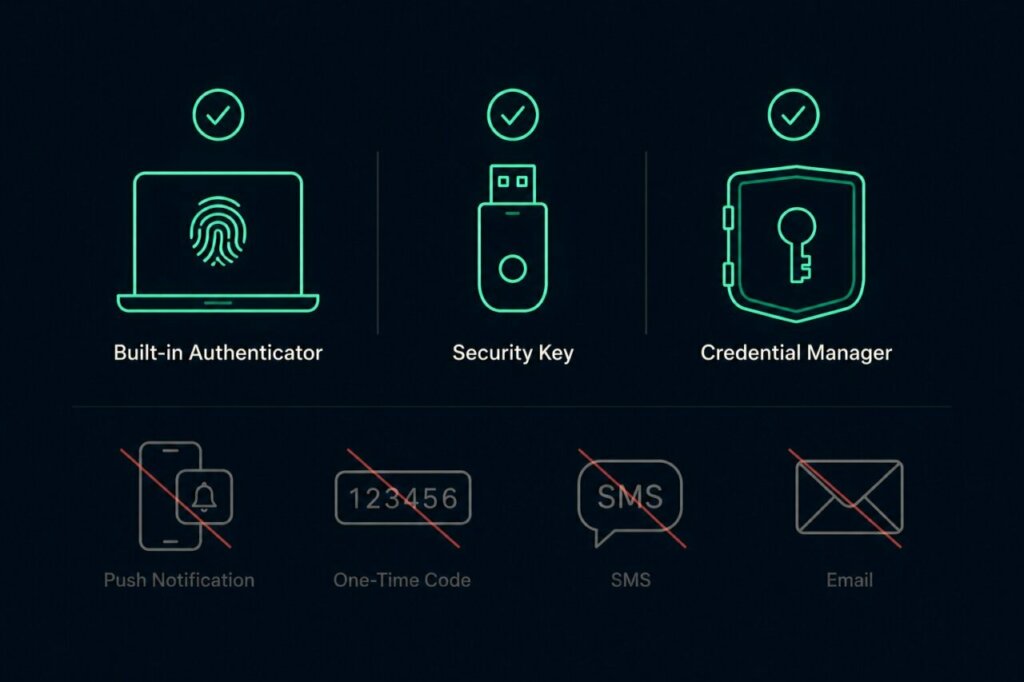
Phishing-Resistant (Required for Privileged Users)
| Method | How it Works |
| Built-in authenticator | Touch ID (macOS/iOS), Windows Hello, Face ID. Uses the device’s secure hardware (Secure Enclave, TPM) to generate and store a cryptographic key. |
| Hardware security key | Physical USB or NFC device (YubiKey, Google Titan, etc.) using FIDO2/WebAuthn standard. |
| FIDO2-compatible passkey in a credential manager | A passkey stored in a password manager that supports WebAuthn, such as Uniqkey. Salesforce confirmed in June 2026 that cloud-synced credential managers using FIDO2 meet the requirement. |
All three methods rely on the same underlying mechanism: WebAuthn/FIDO2 public key cryptography with domain binding. Authentication is tied to the exact origin domain. There is nothing for a phishing page to intercept.
No Longer Sufficient for Admins
| Method | Why It Fails |
| Salesforce Authenticator (push) | Vulnerable to MFA fatigue attacks |
| Google Authenticator, Microsoft Authenticator, Authy (TOTP) | Codes can be relayed in real time by AiTM kits |
| SMS codes | Vulnerable to SIM swapping, SS7 interception |
| Email verification | Easily intercepted if inbox is compromised |
These methods remain available for non-privileged users under Wave 2, but are blocked at the admin login screen after enforcement.
For Wave 2 users, the technical bar is lower. TOTP apps and push notifications qualify. But the practical challenge is different: getting hundreds of employees to consistently use MFA without creating friction, support tickets, and workarounds. Every additional step in a login flow is a point where adoption breaks down.
When employees have to switch between apps, copy six-digit codes, and type them before they expire, the experience creates resistance. This is where a credential manager with 2FA autofill changes the calculus. Instead of manually copying TOTP codes, the tool fills them automatically at login, the same way it fills passwords.
MFA becomes invisible rather than burdensome. Logistics automation company Caljan, with 750 employees, deployed Uniqkey specifically for this reason: to make 2FA effortless enough that adoption happened without pushback. Their IT Manager, Kent Kirkegaard, described it as a decision driven by the reality that if a security tool is not easy to use, employees will not use it.
How to Set Up Phishing-Resistant MFA in Salesforce
This is the admin-side setup. It enables the compliant methods at the org level so that users can register.
Step 1: Go to Setup > Quick Find > Identity Verification
Step 2: Under verification methods, enable both:
- “Let users verify their identity with a built-in authenticator such as Touch ID or Windows Hello”
- “Let users verify their identity with a physical security key (U2F or WebAuthn)”
Both should be active. These settings apply to all users in the org, not just admins. That is expected and beneficial: making phishing-resistant methods available to everyone strengthens the entire org.
For orgs created in Summer 2025 or later, the built-in authenticator setting is already enabled by default. Verify this has not been changed.
Step 3 (recommended): Enable “Allow passwordless login with passkeys”
This setting allows users with a registered passkey to skip the password entry entirely. They click their saved username and authenticate with biometrics or their key. It reduces login time, eliminates the password as an attack surface, and is the experience most modern security guidance recommends.
Step 4: Save your settings.
That is the org-level setup. The next step happens at the individual user level.
How Users Register Their Method
Admins cannot register authentication methods on behalf of users. Each person registers their own device. Here is the process:
- Log in to Salesforce
- Click your avatar (top right) and select Settings
- Navigate to Advanced User Details
- Scroll to Built-In Authenticators or Security Keys
- Click Add (or Register)
- Follow the browser prompts. For a built-in authenticator, you will see a biometric prompt (fingerprint, face scan, PIN). For a security key, you will be asked to insert and touch the key.
- Name the authenticator something recognisable (e.g., “Work Laptop – Dell Latitude” or “YubiKey Blue”) and save.
If you are using a FIDO2-compatible password manager like Uniqkey: the process is the same. When the browser prompts for an authenticator, the password manager’s browser extension intercepts the request and creates a passkey stored inside the vault. On future logins, the extension presents the passkey automatically.
Important Considerations
- Register at least two methods per admin. If one device breaks or is lost, the backup prevents a lockout. For example: a laptop built-in authenticator plus a hardware key, or a laptop authenticator plus a passkey in a credential manager.
- Test the registration by logging out and back in. Verify the phishing-resistant challenge appears and completes successfully.
- “Login As” feature: Admins who use the “Login As” feature to access other user accounts must also have their own passkey registered.
- Multiple devices: If an admin needs access from multiple PCs that do not share passkey information, they should register additional authenticators. A credential manager like Uniqkey eliminates this problem entirely: passkeys sync across devices through the encrypted vault, so a new laptop is covered the moment the extension is installed. Mobile devices can be linked by scanning a QR code during the registration process.
Handling SSO Logins
This is the section most teams underestimate. If your admins log in via SSO through Okta, Microsoft Entra ID, Ping, or another identity provider, Salesforce still requires proof of phishing-resistant authentication. The enforcement does not assume that SSO is sufficient on its own.
How Salesforce Evaluates SSO Authentication
When a user authenticates via SSO, the identity provider sends authentication context information to Salesforce inside the SAML assertion or OIDC token. Salesforce reads this signal and categorises it into one of three tiers:
Tier 1: Phishing-Resistant (accepted for admins) Signals: cert, fido, fido2, fpt, hwk, iris, pin, pki, pop, retina, sc, smartcard, swk, TLSClient, user, vbm, wia, x509
Tier 2: Standard MFA (not sufficient for admins, accepted for Wave 2 users) Signals: face, okta_verify, passkey, webauthn, multipleauthn
Tier 3: Weak or no MFA (blocked for everyone after enforcement) Signals: pwd, sms, tel, email
The Common Failure Mode
Many organisations use phishing-resistant methods at the IdP level but the IdP does not pass the correct signal to Salesforce. For example, your admins might authenticate with Windows Hello at the Entra ID login screen, but Entra sends multipleauthn as the authentication context rather than fido2. From Salesforce’s perspective, that is standard MFA, not phishing-resistant. The admin login is blocked.
This is not a theoretical scenario. It is the number-one reason organisations that believe they are prepared discover they are not.
How to Check
- For OIDC-based SSO: Review Login History in Salesforce. Check the AMR (Authentication Method Reference) values for your admin users.
- For SAML-based SSO: Use a browser extension like SAML Tracer to inspect the assertions your IdP sends. Look at the AuthnContextClassRef or amr values.
Two Options to Fix It
Option A: Update your IdP configuration to pass phishing-resistant signals when the user authenticates with a qualifying method. This requires coordination with your identity or infrastructure team. The specific configuration varies by provider, but the objective is the same: make sure the downstream assertion reflects what actually happened at the authentication step.
Option B: Enrol admins in Salesforce-native phishing-resistant MFA as a fallback. If Salesforce does not receive a qualifying signal from the IdP, it will prompt the user to enrol a built-in authenticator or security key directly within Salesforce. This adds an extra step at login but guarantees compliance without changing the upstream IdP.
Either approach works. Option A is cleaner long-term. Option B is faster to deploy if time is short.
Integration Users and Service Accounts
MFA enforcement only applies to UI logins. API-only integrations (REST, SOAP, Bulk API, JWT Bearer flow, Client Credentials flow) are not affected.
The risk comes from integration accounts that have admin-level permissions and occasionally log into the UI. This happens more than teams expect: someone uses the integration credentials to troubleshoot a sync failure, test a flow, or debug a Connected App authorisation.
The exemption for integration users is evaluated by actual login behaviour, not by a checkbox. The moment that account logs in through the browser, even once, the exemption is gone.
What to Audit
- Identify every non-human account with any of the five triggering permissions
- Check Login History for any UI login events from those accounts
- Review Connected Apps that use OAuth Web Server or Hybrid Token flows, as these require a UI login for the OAuth authorisation step
Best Practice
- Separate human and system access. Do not use the same account for both.
- Remove System Administrator from integration users. Replace it with a Permission Set that contains only the specific permissions the integration needs.
- Use API-only authentication flows (JWT Bearer, Client Credentials) wherever possible.
- If a Connected App requires UI authorisation, the user completing that authorisation step must have a phishing-resistant method registered.
Edge Cases That Catch Teams Off Guard
Salesforce Mobile App
Admins using Mobile SDK version 13.2.0 or earlier will be blocked from logging in unless the org has Advanced Authentication configured in My Domain settings. Mobile SDK 13.2.1, released in May 2026, includes a “Login for Admin” button that forces browser-based authentication and enables phishing-resistant MFA automatically. Admins on the Salesforce Mobile App can also use the “Login with Email” option.
If you have admins who regularly access Salesforce from their phone, confirm the SDK version and update if needed.
The Waive Permission Gotcha
The “Waive Multi-Factor Authentication for Exempt Users” permission has been the invisible workaround for many orgs. After enforcement, it stops working. Any user holding this permission will be prompted to enrol at login. For automated testing tools that rely on this exemption, you must file a case with Salesforce Support before enforcement to get the exemption restored through a formal approval process.
Trial Org Conversions
The 30-day MFA grace period that previously applied when converting a trial org to a paid subscription has been removed entirely. MFA enforcement applies immediately on conversion.
Report Identity Verification
Separately from the MFA enforcement, Salesforce is also rolling out step-up identity verification for reports. Starting in production from June 10, 2026, users may be asked to verify their identity before running or viewing reports, even if they already authenticated with MFA at login. This is a separate change but uses the same registered verification methods.
Login Flow Changes
Salesforce is updating the login screen flow: username first, then password or passkey after clicking Log In. If your org has automated UI tests that rely on the current login page structure, they may need updating.
Managing Passkeys Across Your Organisation
Setting up phishing-resistant MFA for Salesforce raises a practical question that most compliance guides skip: once admins have registered passkeys, where do they live, and who manages them?
For a single person on a single device, the answer is simple. The passkey lives in the device’s secure hardware. But teams have to deal with realities that single-device thinking does not cover:
- Admins use multiple devices (office laptop, home machine, phone)
- People change roles or leave the organisation
- Devices break or are replaced
- Some access credentials are shared across a team (e.g. a shared Salesforce sandbox login)
Hardware security keys solve the device portability problem but cost €25-50 per key, require physical distribution and inventory management, and create a hard dependency on a physical object. Losing the key means a lockout until a backup is available.
Built-in authenticators are free and convenient but tied to a specific device. A new laptop means re-enrolling. A broken device means recovery through Salesforce Support.
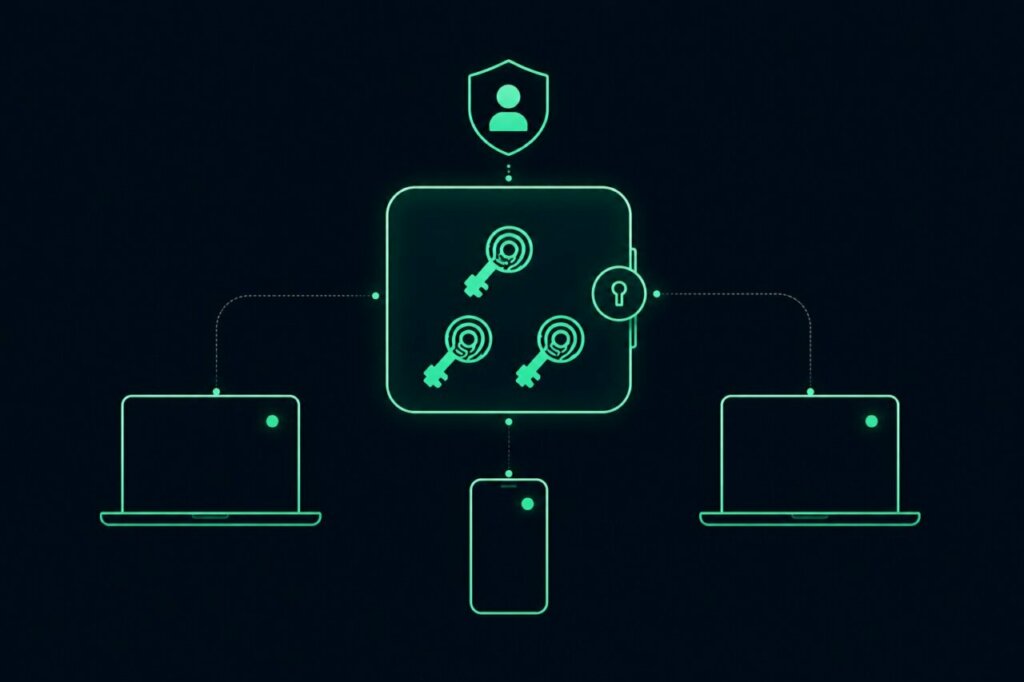
FIDO2-compatible password managers solve both problems. They store passkeys in an encrypted vault that syncs across devices, can be managed centrally by IT, and apply the same governance (assignment, monitoring, revocation) that organisations already use for passwords and shared credentials.
This is why the Salesforce MFA deadline is also the right moment to establish a passkey governance policy that extends beyond Salesforce. Passkeys scattered across individual devices, with no central visibility, create the same fragmentation problem that password managers were originally designed to solve.
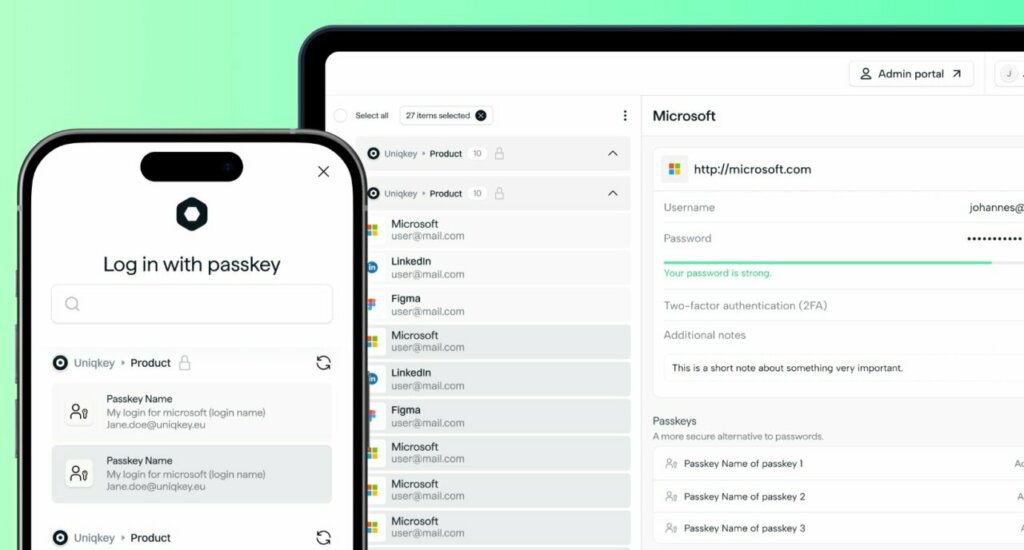
Uniqkey supports this approach. As a European-built password and access management platform, Uniqkey added full passkey support in Release 2.32. Passkeys registered through the Uniqkey browser extension are stored in the Uniqkey vault, managed through the admin portal, and covered by the same audit logging, group management, and onboarding/offboarding controls the platform provides for passwords.
For Salesforce specifically: an admin with Uniqkey installed registers their Salesforce passkey through the browser extension. On subsequent logins, Uniqkey presents the passkey automatically. The admin confirms with biometrics. Login completes in seconds. No password. No push notification. No code to type.
For non-admin users covered by Wave 2, the same platform handles the standard MFA requirement through 2FA autofill, automatically entering TOTP codes at login so employees never have to switch apps or type a six-digit code manually. One tool covers both enforcement waves: passkeys for privileged users, frictionless 2FA for everyone else.
The European Compliance Dimension
For European organisations, the choice of where to manage passkeys is not just a convenience question. It is a compliance decision.
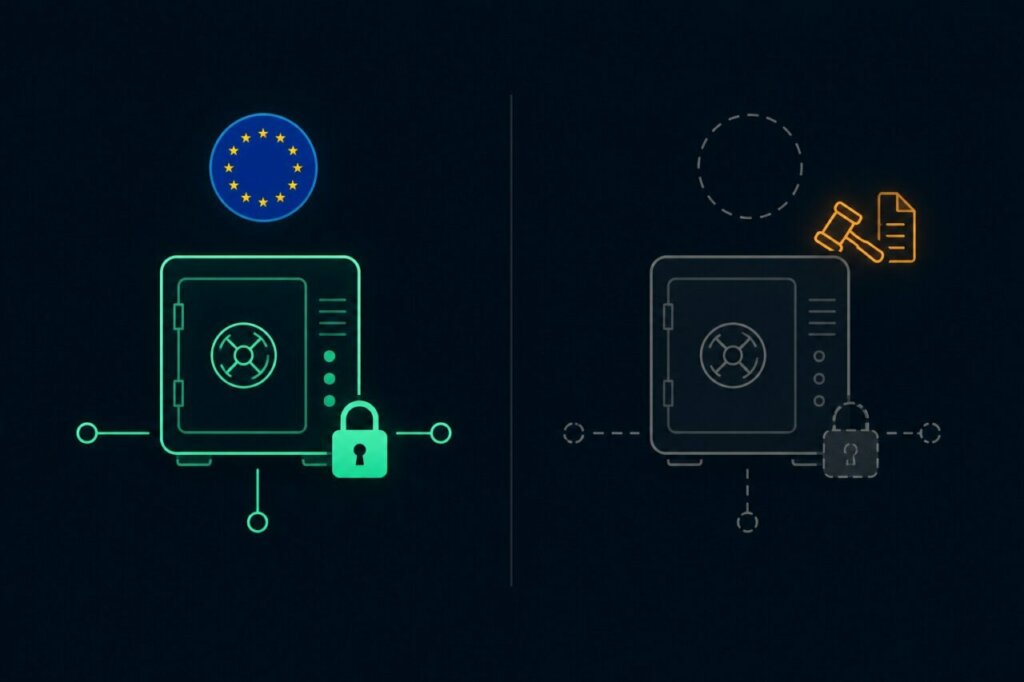
Authentication Telemetry Is Sensitive Data
Passkey metadata includes which accounts are enrolled, when authentication events occur, from which device, and from which location. This is access telemetry. Under GDPR, it is personal data that must be processed under EU law.
If the tool managing your passkeys is headquartered outside the EU, that telemetry may be subject to foreign legal requests regardless of where the servers sit. The US CLOUD Act allows US law enforcement to compel US-headquartered companies to produce data held anywhere in the world. An “EU-hosted” instance operated by a US parent company does not carry the same legal protections as a platform owned and operated under EU law.
This is the same concern documented in the Schrems II ruling and the pattern of sovereign washing that European organisations increasingly need to scrutinise.
NIS2 and DORA Alignment
The Salesforce MFA deadline does not exist in regulatory isolation. NIS2 requires organisations in scope to implement appropriate technical measures for access control. DORA applies the same logic to the financial sector. Regulators across Europe are increasingly treating phishing-resistant MFA as the baseline standard for privileged access, not an aspirational target.
Meeting the Salesforce requirement with a European tool, where passkeys, passwords, and access governance are managed under EU jurisdiction, addresses the platform compliance requirement and the regulatory expectation in one move.
Uniqkey operates under Danish and EU law, is ISO 27001 certified, and runs its entire infrastructure within Europe. Zero-knowledge encryption ensures that even Uniqkey cannot access vault contents. The platform is purpose-built for European businesses that need both strong access security and data sovereignty.
Preparation Timeline
Now through July 20
- Audit affected users. Identify everyone with System Administrator profile or the four elevated permissions. Include Permission Set Groups.
- Audit integration users with admin-level permissions. Check for any UI login history.
- Decide on your primary authentication method. Built-in authenticators, hardware keys, or FIDO2-compatible credential manager.
- If using a credential manager, begin deployment to admins now.
- Check SSO signals. Review Login History or use a SAML tracer to verify your IdP sends phishing-resistant signals for admin logins.
- Confirm sandbox testing is complete. Sandbox enforcement began July 6, 2026: verify every admin has registered and tested a phishing-resistant method, and Wave 2 users have a standard MFA method enrolled.
- Send a final reminder to all users to register their MFA method before production enforcement begins.
July 20 onwards
- Production enforcement begins for both waves simultaneously: phishing-resistant MFA for privileged users and standard MFA for all remaining employees.
- Wave 2 users without any MFA method will be prompted to enrol at login (any standard method qualifies). Wave 1 admins must specifically register a phishing-resistant method to avoid being locked out.
Frequently Asked Questions
No. Salesforce Authenticator uses push notifications, which are standard MFA and vulnerable to fatigue attacks. It is blocked for any user with admin permissions after Wave 1 enforcement. It remains available for non-privileged users.
Not necessarily. Built-in authenticators (Touch ID, Windows Hello, Face ID) are free on most modern devices. Hardware keys are useful for shared workstations or devices without built-in secure hardware, but many teams can reach full compliance without them.
Yes. Salesforce confirmed in June 2026 that cloud-synced credential managers using FIDO2/WebAuthn meet the phishing-resistant requirement. Uniqkey, for example, stores passkeys via WebAuthn and manages them centrally through its admin portal. Verify your chosen tool uses WebAuthn for its passkey implementation.
Contact Salesforce Support for a one-time login code. This process is not instant and queues are expected to be busy around enforcement windows. Registering two methods per admin before the deadline is the safest way to prevent this.
No. Experience Cloud and Community site logins are not subject to MFA enforcement and remain configurable by org admins.
API-only integrations are not affected. The enforcement applies to UI logins only. The risk is integration accounts with admin permissions that someone occasionally logs into through the browser. Audit these accounts and separate human from system access.
Not directly mandated by NIS2, but consistent with where European regulators are heading. Both NIS2 and DORA require appropriate technical measures for access control, and phishing-resistant MFA is increasingly treated as the baseline for privileged accounts. Meeting the Salesforce requirement strengthens your NIS2 posture as well.
If your IdP does not send phishing-resistant signals to Salesforce, your admins will be prompted to enrol a Salesforce-native phishing-resistant method on their next login. They will not be locked out permanently, but they will face an unexpected enrolment step that blocks access until completed. Testing and fixing this before enforcement is strongly recommended.
The Salesforce MFA deadline is the most concrete, time-bound expression of a wider shift toward phishing-resistant authentication. Microsoft, Google, and European regulators are all moving in the same direction. Organisations that treat this as a one-off compliance fix will repeat the work for every platform. Those that establish central passkey governance now, with visibility, lifecycle management, and European infrastructure, build a foundation for everything that follows.
The deadline is weeks away. The practical steps are clear.